How to Create Professional Radio Commercials: Mastering AI Voiceover Processing
Unlock studio-quality sound for your radio spots. Learn how to clean, process, and optimize your voiceover audio with Sonodit in just a few minutes.
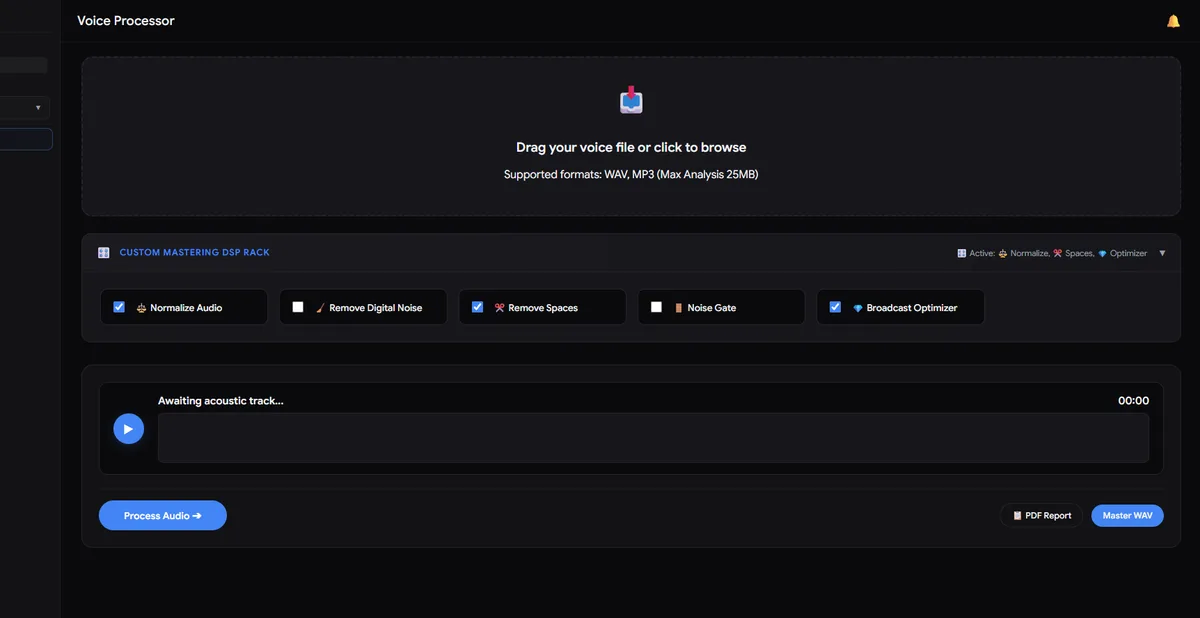
Step 1: Upload Your Audio
Start by opening the Sonodit dashboard. Our intelligent processing system is designed to optimize, level, and remove unwanted noise or harsh frequencies before your audio even reaches the editor. Click on Upload Project to begin. Our system supports both WAV and MP3 formats. Once uploaded, the system will instantly analyze your audio file.

Step 2: Review Technical Analysis
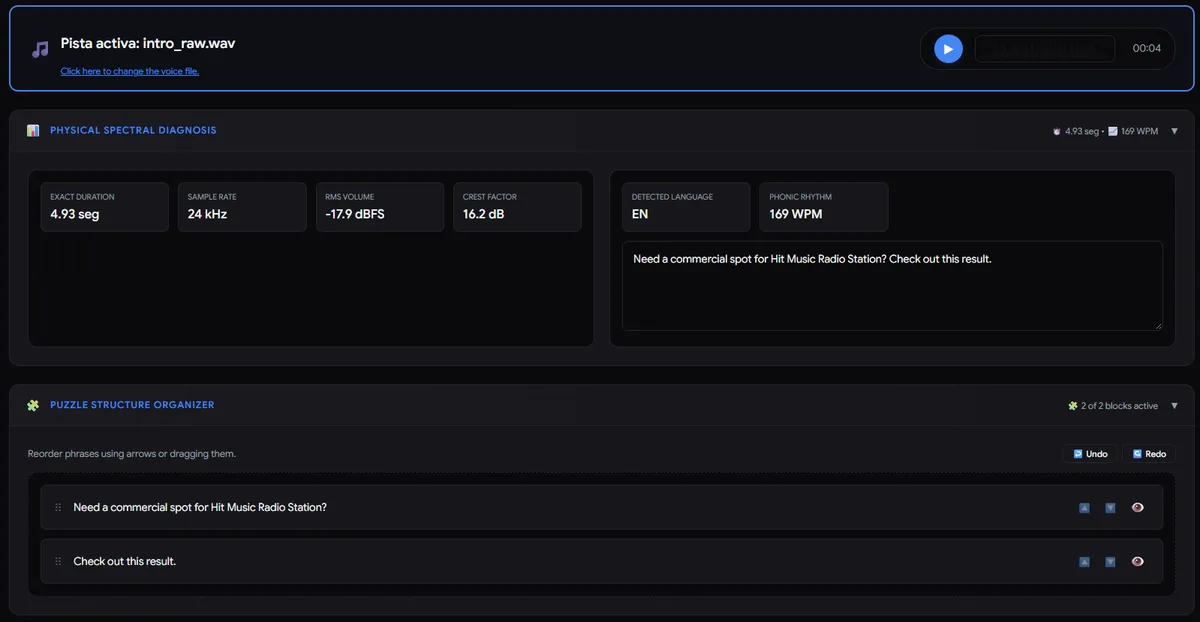
Once the analysis is complete, you will see a detailed dashboard displaying the technical specifications of your voiceover:
- Exact Duration
- Sample Rate
- RMS Volume
- Crest Factor
- Detected Language
- Phonic Rhythm (WPM)
Additionally, you will see a list of phrases from the audio. You can easily modify the order of these sentences by clicking and dragging them up or down to adjust the flow of your radio commercial.
Step 3: Apply Professional Processing Tools
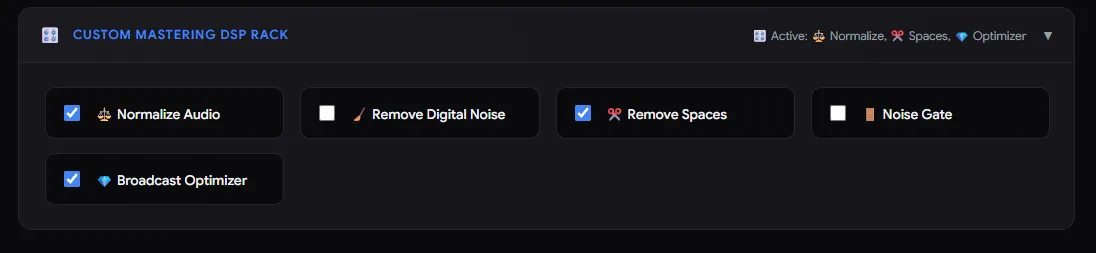
Tailor your sound by selecting the specific processing tasks required for your spot:
- Normalize: RMS V5 Normalization + Clip Gain Matching per phrase. Essential for calibrating the Gate and mastering chain.
- Remove: High-pass filter at 50Hz and adaptive digital noise reduction that analyzes gaps between sentences.
- Silence-Cutter: Compacts the audio by removing internal rhythmic silences while maintaining natural PTK pacing.
- Noise-Gate: Eliminates minor hiss and background noise (requires Normalize to be enabled).
- Processor: Injects your audio into the digital processing channel, featuring De-esser, Commercial Compression, and FM Harmonics.
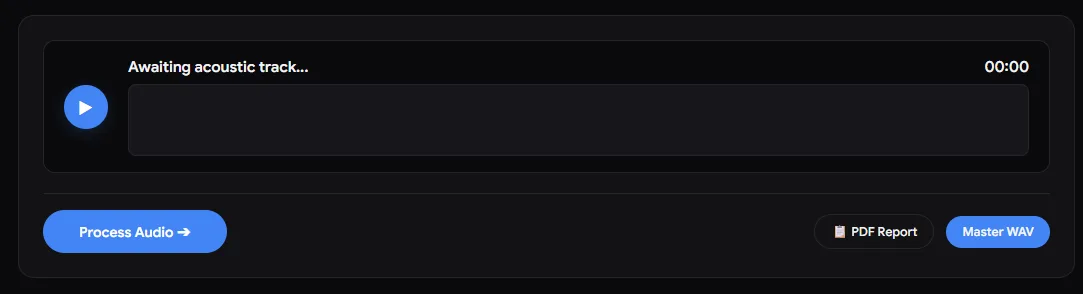
Step 4: Process and Export
Once you have selected your desired settings, click the Process button. The system will generate your mastered audio track. After processing, you can download your result as a high-quality WAV file (16bit, 44.1kHz) and access an automatic PDF transcription of the audio for your records.
Smart Radio Studio
Producí spots de radio profesionales en minutos con inteligencia artificial.